Android has a very cool feature that still many developers dont know. Apps like Any.DO uses speech to text conversion feature quite creatively. In today’s world of Siri, voice commands are of utmost importance. Android natively provides feature of Speech to Text so why not to use it in our app! I will show you how to use Android’s Speech to Text API in an application. Let’s make our demo application.
Demo App
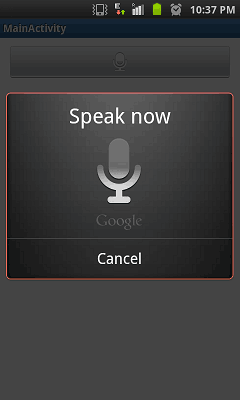
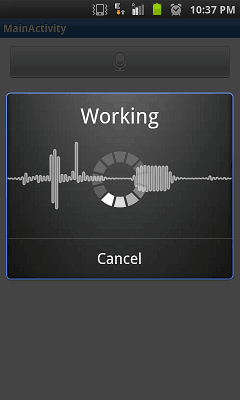
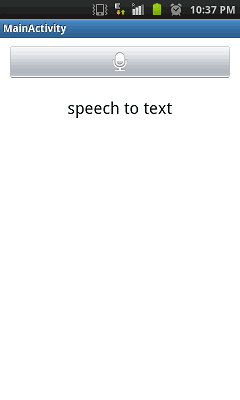
The App will be very simple. It will have a button with Mic symbol. On click of which we trigger Android’s Speech to Text Intent which shows a dialog to take speech input. The speech input is then converted into text. The text is then displayed in a text view.
Step 1: Create Basic Android Project in Eclipse
Create a Hello World Android project in Eclipse. Go to New > Project > Android Project. Give the project name as SpeechToTextDemo and select Android Runtime 2.1 or sdk 7. I have given package name net.viralpatel.android.speechtotextdemo. Once you are done with above steps, you will have a basic hello world Android App.
Step 2: Change the Layout
For our demo, we need simple layout. Just one Image Button to trigger Speech to Text API and one TextView to display result text that is converted from speech. Open layout/main.xml in your android project and replace its content with following:
File: res/layout/main.xml
<LinearLayout xmlns:android="http://schemas.android.com/apk/res/android"
    xmlns:tools="http://schemas.android.com/tools"
    android:layout_width="fill_parent"
    android:layout_height="wrap_content"
    android:layout_above="@+id/textView1"
    android:layout_toLeftOf="@+id/textView1"
    android:gravity="center"
    android:orientation="vertical" >

    <ImageButton
        android:id="@+id/btnSpeak"
        android:layout_width="fill_parent"
        android:layout_height="wrap_content"
        android:layout_margin="10dp"
        android:layout_marginRight="10dp"
        android:layout_marginTop="10dp"
        android:contentDescription="@string/speak"
        android:src="@android:drawable/ic_btn_speak_now" />

    <TextView
        android:id="@+id/txtText"
        android:layout_width="wrap_content"
        android:layout_height="wrap_content"
        android:layout_marginLeft="10dp"
        android:layout_marginRight="10dp"
        android:layout_marginTop="10dp"
        android:textAppearance="?android:attr/textAppearanceLarge" />

</LinearLayout>Code language: HTML, XML (xml)
The UI is very simply. One LinearLayout to organize the button and text view. Note the id for button: btnSpeak and text view: txtText which we will use in our Java code.
Step 3: Android Java Code to trigger Speech to Text API
Open SpeechToTextDemoActivity class and replace the code with following.
File: SpeechToTextDemoActivity.java
package net.viralpatel.android.speechtotextdemo;

import java.util.ArrayList;

import android.app.Activity;
import android.content.ActivityNotFoundException;
import android.content.Intent;
import android.os.Bundle;
import android.speech.RecognizerIntent;
import android.view.Menu;
import android.view.View;
import android.widget.ImageButton;
import android.widget.TextView;
import android.widget.Toast;

public class MainActivity extends Activity {

	protected static final int RESULT_SPEECH = 1;

	private ImageButton btnSpeak;
	private TextView txtText;

	@Override
	public void onCreate(Bundle savedInstanceState) {
		super.onCreate(savedInstanceState);
		setContentView(R.layout.activity_main);

		txtText = (TextView) findViewById(R.id.txtText);

		btnSpeak = (ImageButton) findViewById(R.id.btnSpeak);

		btnSpeak.setOnClickListener(new View.OnClickListener() {

			@Override
			public void onClick(View v) {

				Intent intent = new Intent(
						RecognizerIntent.ACTION_RECOGNIZE_SPEECH);

				intent.putExtra(RecognizerIntent.EXTRA_LANGUAGE_MODEL, "en-US");

				try {
					startActivityForResult(intent, RESULT_SPEECH);
					txtText.setText("");
				} catch (ActivityNotFoundException a) {
					Toast t = Toast.makeText(getApplicationContext(),
							"Opps! Your device doesn't support Speech to Text",
							Toast.LENGTH_SHORT);
					t.show();
				}
			}
		});

	}

	@Override
	public boolean onCreateOptionsMenu(Menu menu) {
		getMenuInflater().inflate(R.menu.activity_main, menu);
		return true;
	}

	@Override
	protected void onActivityResult(int requestCode, int resultCode, Intent data) {
		super.onActivityResult(requestCode, resultCode, data);

		switch (requestCode) {
		case RESULT_SPEECH: {
			if (resultCode == RESULT_OK && null != data) {

				ArrayList<String> text = data
						.getStringArrayListExtra(RecognizerIntent.EXTRA_RESULTS);

				txtText.setText(text.get(0));
			}
			break;
		}

		}
	}
}
Code language: Java (java)
The heart of Speech to text Android API is package android.speech and specifically class android.speech.RecognizerIntent. Basically we trigger an Intent (android.speech.RecognizerIntent) which shows dialog box to recognize speech input. This Activity then converts the speech into text and send backs the result to our calling Activity. When we invoke android.speech.RecognizerIntent intent, we must use startActivityForResult() as we must listen back for result text. Note how in above code we crate intent android.speech.RecognizerIntent and trigger it. Also we add one extra parameter using .putExtra() method. When invoking RecognizerIntent, we must provide extra RecognizerIntent.EXTRA_LANGUAGE_MODE. Here we are setting its value to en-US. Since we triggered the RecognizerIntent via startActivityForResult(), we override method onActivityResult(int requestCode, int resultCode, Intent data) to handle the result data. The RecognizerIntent will convert the speech input to text and send back the result as ArraList with key RecognizerIntent.EXTRA_RESULTS. Generally this list should be ordered in descending order of speech recognizer confidence. Only present when RESULT_OK is returned in an activity result. We just set the text that we got in result in text view txtText using txtText.setText().
One thing worth noting here is how to handle devices/android version that doesn’t support speech to text API. In such case, exception ActivityNotFoundException will be thrown when we try to start activity. In above example, we have catched this exception and displayed a message “Opps! Your device doesn’t support Speech to Text” using Toast.
Screen shots of Android App
And that’s all! Just execute the app in Android emulator or real device and see following output.

Download Source Code
Android_SpeechToTextDemo.zip (350 KB)


Excellent
Sir,This is actually good but i’m not getting text. after your third screen i’m getting “connection problem speak again”. I’m using Android 2.3
@Priya: For solving Connection problem You have to connect internet…
I have also got same problem.. After connect internet It works for me.. Try this…
U’ll get the output on a Real device not on Emulator
Is it possible to simultaneously capture the audio to a file, so I would have the original audio and transcript? Or would I have to record to a file and transcribe the file somehow? Thanks!
It gives me “Your device doesn’t support this program”
Please help me what to do.I have downloaded the zip of this and I am not understanding what is the problem.I also created AVD with Audio recorder support but still it gives me the same problem.
Please help me
I have the same issue as Brinda. When I click on the button in the emulator I get the message: “Oops! Your device doesn’t support speech to text”
I have already added audio recorder and audio playback to the emulator. What is the problem?
@brinda , suyog , the speech does not work on emulator try on real device
hi ! great job man. i have a question. can i have the possibility to change the “en-US” to another one.
Really superb dude, It is working fine in my android HTC wildfire . Thanks
Its not working on emulator and giving error “Oops your device does not supplort speech to text”. How you run this code in htc wild Fire? plz guide me…
I want to automatically text my voice replies while conversing on the phone. Is this possible and are there any apps?
shown Error as connection Problem..
Unlike text to speech, speech to text must have an internet connection to provide the words spoken out. Text to speech do not need internet connection it uses the built-in android text to speech recognition (Pico TTS Engine) which you can find in settings under “Voice input and output settings”
Its working fine in my device by removing the android:showAsAction=”never” from the menu.activity_main. Can you please tell me what is the meaning of this and why we do required it in the application.
there is many errors…
“unable to resolve target android-12”
r cannot be resolved to a variable in 12th line and 18th line but there are nothing….
wow! it’s easy and amazing ….thanks sir….
“txtText.setText(text.get(1));” insted of “txtText.setText(text.get(0)); ” for long speech.
i just wanted to know tht how could i listen to emails using text to speech engine provided by google i hv created an app which reads sms bt i also want it to read emails.send me appropriate code if possible.
Hello sir,
the exception is occuring on mobile as well as emulator. ” “Opps! Your device doesn’t support Speech to Text””
What should i do ?
Great article. Thanks. Worked it in to my app to save to database!
is it possible to make it in an offline mode? tnx.
Hi,
I want to change the dialog box of google mike icon when speech to text is on . I want to customize it the way I want . Is it possible bcoz there are apps on google play with speech to text in which the have used different mike icon e.g: of app is text by voice from google play.
displayed a message “Opps! Your device doesn’t support Speech to Text” . sir can you help me how to handle device in android..
Great Article. Thanks. I just want to know one thing can we record our voice with this???
from where to download eclipse software…some1 give me the link for that
Hai friends ! what is the procedure to change the lanugage????????
Hi, nice quickstart tutorial but I noticed one thing …
you said:
we must provide extra RecognizerIntent.EXTRA_LANGUAGE_MODE. Here we are setting its value to en-US.
That’s not true, the possible values are
LANGUAGE_MODEL_FREE_FORM and LANGUAGE_MODEL_WEB_SEARCH
(http://developer.android.com/reference/android/speech/RecognizerIntent.html#EXTRA_LANGUAGE_MODEL)
To specify a language (different from what is given by Locale.getDefault() ) for the recognition you have to add another extra:
EXTRA_LANGUAGE with the code of the language you want to recognize
eg. intent.putExtra(RecognizerIntent.EXTRA_LANGUAGE, new Locale(“de”, “DE”).toString());
(http://developer.android.com/reference/android/speech/RecognizerIntent.html#EXTRA_LANGUAGE)
best, Steve
I am getting an error while using it “can not be resolved …” at btn_speak pls help
thanx buddy
In this app when i stop speaking then it stops recognizing the voice is it any way to continue to recognize voice for some time and then stop the activity
also wait for answer, same problem as this one
I’m also encountering this problem. Kindly help if you’ve found the solution. :)
how to create one key on the keyboard for speach to text in android
pleas how can I make speech to text program work continuously without click the button every time I want to speak ??
Sir, i have found an error here:
public boolean onCreateOptionsMenu(Menu menu) {
getMenuInflater().inflate(R.menu.activity_main, menu);
return true;
}
here, menu cannot be resolved or it is not find view.
How can i do now
Try changing the line:
to
does not worked
if at run time it shows connection problem mean u have to add audio to your manifest file.
dude i m using android 4.2.2 n it is saying that this device dosen’t support speech to text conversion……
hi..i got 2 errors here..
txtText = (TextView) findViewById(R.id.txtText);
btnSpeak = (ImageButton) findViewById(R.id.btnSpeak);
why this 2 things got error..somebody plss help me…
@ajeeb: whats the error?
Nice dude!
Sir you post great tutorial about speech to text i am new in android i am not good programmer likee you.now i need your help please post very simple and clear example for ftp usage in Mu app thanks….
How to use stack mob created API in our app.
nice tutorial
Hi. U know if is possible add a button to START and another to STOP and only when press stop execute the process Voice to Text?
device not found error,plz help me
i’m geeting a popup saying ” unknown problem ” when i’m clicking on the speak button. what to do? .
Excellent.!! This worked like a charm on my nexus 7 tablet!!
Thanks a lot
Good Article…
superb app… thanks buddy..
Please need help to run this on an emulator can u be kind enuf to run me through how to do this because I keep getting “Opps! Your device doesn’t support Speech to Text” please I need this very urgent. Please help .
Thank you so much
hi i have to do this project for that i have installed eclipse sdk is this enough or i need any audio playbacks plz help me
i’m getting error saying that ‘ Oops ! your device doesn’t support speech to text ‘
Can you please help me..
Great example code. It was simple and to the point. I had no problems with the code. Thanks so much!
Hi
Thank you for the source code, really helpful, however, it shows the Toast message “oops! your device doesn’t support speech to text” that I wrote, I don’t know where the problem is.
please help me
IF THE AUDIO FILE IS RECORDED THEN HOW TO CONVERT IT INTO TEXT.
This part is not right:
intent.putExtra(RecognizerIntent.EXTRA_LANGUAGE_MODEL, “en-US”);
Should be:
intent.putExtra(RecognizerIntent.EXTRA_LANGUAGE_MODEL, RecognizerIntent.LANGUAGE_MODEL_FREE_FORM);
intent.putExtra(RecognizerIntent.EXTRA_LANGUAGE, “en-US”);
thanks!
I am trying to change the language of the recognition from English to Arabic and I simply did this
intent.putExtra(RecognizerIntent.EXTRA_LANGUAGE_MODEL, “ar-QA”); // Qatari Arabic
But I get the text in English which is fine with me but interpreted wrong
for example, I say “Yameen = right” >> I get the text as “Yeah mean” :)
any suggestions on how I might be able to change the language of the recognition and the text?!
another question, why do I have the button to activate the recognition, can’t I simply keep it listening the min I run the app?
Thank you so much in advance for helping me understand :)
use this
Hi Viral Patel thanks for such a nice tutorial this program working perfect but i have some question regarding this post, this program recognize only alphabets not numeric or number if i say 100 it will print hundred, actually i want a result if i say 100 then it will show numeric value not a alphabets, can you help me out on this ?????
facing the same issue
i am also facing the same problem. did u get any solution (or) work around for this ?
you guys got the rest as a text, so go ahead and parse the text and replace “hundred” by “100”. simple :)
text.get(0).replace(“hundred”, “100”)
if you say “one hundred” it will display “100”. However, if you say “hundred” it will display “hundred”.
Hello viral patel,
Thanks for sample application.
It is working good. but in some devices it is working fine with out internet connection.
but in some devices , it needs internet connection.
Is there any other option to make speech to text in offline mode with out internet.
Thanks,
PRatap
Is it possible to run the recognizer intent in the background and it is possible to convert a audio file to text by using this API in android.
Hey i want to know can i manually give input to the api . Like a recording to the api to convert it to text ??
Hello,
Great and easy example, can you please give me some suggestions my problem is i want to use the same functionality in a simple java class (non-activity class). how can i achieve this .?
hi viral,i’m purushoth,i seen your project it’s fine k k ,i tried in my system this was not run properly if i click the button it’s record my speech it shows only the button(its first screen shot only displayed} help me…
What is the language tag for hindi-India?
its “hi”
i download the source code and running it on sdk vertiual andriod device by it giving me error that (opp’s your device do not support speech to text ) what i have to do now
maybe you have to cut and paste!
You must run the Android Project in real device (smartphone). It isn’t run in vitural device because vitural device not supported
das ist bundaba!, excellent, muy bacano—- felicitaciones
Es heißt wunderbar. Aber egal…
sir, this speech to text demo is not working in w-ifi.plz send me the code so it work in w-ifi.
I am still waiting for your answer.
vertiual andriod device display an error …opp’s your device do not support speech to text …..any one can help me
Speech recognition is not supported by it, you have to test on some Android device with this functionality and this API.
please,please who can answer my question:when i change the language of the recognition from English to Arabic i use(ar_SA) it is done but without any open,vibrio,Fracture and serenity on the arabic letters
,so what should i do to get the open,vibrio,Fracture and serenity on the arabic letters?
Thank you so much in advance for helping me understand
please help me soon:i want that when i read quran karim the program write it with full arabic language i mean with open,vibrio,Fracture , serenity and others on the arabic letters ,i change
en-US to ar_SA its done but but without any open,vibrio,Fracture , serenity and others on the arabic letters ,so what should i do,please?or whats the type of english language that i can use to write every letter when i said in arabic language then it writes in english letter for example when i say “بِسْمِ الله” it will write “bismilah”.
please,please answer me
In my device, this application is not running without an Internet connection. What’s wrong?
hey can anybody mail me code for intenet class
r.id cannot be resolved error plz help me guys..!!!
Clean your project. If you still see the error then make sure you are importing the correct R class.
android.R is the OS provided class while yourpackagename.R will be your class generated on build.
I want to change the language of the recognition from English to Amharic language.
any suggestions on how I might be able to change the language of the recognition and the text?!
hello sir, i am doing a project on voice recognization i,e text to voice and voice to text, sir i got text to voice and i wrote the code for voice to text, but in emulator its coming that this device doesn’t support this application, so what to do sir please suggest me and also which supporting files and are needed to run this application, reply me as fast as possible sir please.
u should work with android 4.0
below that it wont work…just try i had the same problem
Nice coding.. 100 % working
i want the opposite tts arabic – text arabic to speech – have you solution
Hi im having some problems , when im creating the layout this problem appear:
@string/speak: No source found that matches the given name.
Go to your strings.xml and edit it by putting this:
Speak
and that should work.
this source code is very understandable.thank you
hi,
Can anybody confirm me that this code works in offline mode…. for me its working fine in online but when iam trying in offline mode.. it does’t work….. when i went through the code there is no option indicating that internet is required?… so i think this should work in offline….pls suggest ….
any references which work in offline….
Thanks
Aravind
Hello sir
thanks for the tutorial…I encounter a problem where when I speak to the device then it load of something..after that the textview area doesn’t show up..any idea why??
im using samsung galaxy mini
looking forward for your respond..thank you :)
THank u
Thanks Viral. Its Nice Tutorial. It works perfectly on real android device. Good Luck.
Will Android Speech take pre-recorded audio?
i want speech to text conversion in java please help me
how do i change my pacakage name…..net.viralpatel.android.speechtotextdemo
thanq …u helped me
While i m trying this app in emulator it is showing the toast message “your device doesn’t support speech to text”. May i know the reason?
hello sir
i am Dhruvika.i am mca final year student.in 5 th sem dessertation subject .my dessertation defination is speech to text in gujarti for android mobile.i have no idea how to add gujrati voice typing languge in mobile.
IT GIVES NO MATCHES FOUND DIALOG……CAN ANYONE TELL ME WHY?
Perfect. Tried it on my Note 3 and it is just perfect, and simple. Thanks
android:src=”@android:drawable/ic_btn_speak_now”…….THIS LINE IS SHOW THE FOLLOWING ERROR IN ECLIPSE…..”@android:drawable/ic_btn_speak_now requires API level 3 (current min is 1)”…..HELP OUT ASAP
Cara muito bom, simples e ótimo exemplo!!!!
Hello sir,
How do you use Natural languange Processing in this program. thank you. urgent badly needed.
Hello sir
I am beginner of android.I have one doubt my application contain Telugu song lyrics files are stored in res/xml/abc,xml like this how to read the files when i reading it display like boxes how to read Telugu in my application and also how to place xml folder in array list folder contain 777 files song lyrics how to read it please help me.
hey can i convert the speech from english to text in another language,,,,what changings do i ahve to made,,,,PLZ REPLY….
My app does not open it opens some other app.please help me…
Is it requires internet?
yes, but if you download that language library then it will also work offline.
hi guys,
i just want to save the speech recognition o/p (i.e., text) in a separate text file like notepad.. How can i do it??? Any suggestions would be greatly appreciated!!!
I try it in my smartphone, not virtual. But also show ‘your device doesn’t support speech to text’, please help me
The code works fine when I run it on Android Studio, but when I run it on my device it says that app has stopped working. It seems that there is a bug which blocks the app from working fine on my phone. Can someone help me with that problem?
you make my day… i was need of this in my map based application …. works fine….. Thanks ViralPatel
hi…can anybody suggest me how to remove the google logo from it:)
I have a question When spoken words are converted into text, how to store that into a text file. So that I can use it(text file) later.
Error:(17, 37) No resource found that matches the given name (at ‘contentDescription’ with value ‘@string/speak’). How to solve this?
Sir I want To save this text file ????
Sir I want To save this text file ????
Thanks you…
It work for me.
but can we done it without internet??because when internet is off it gives error.
so is there any solution for this
PLEASE provide speech to text in swing or simple code……
is it possible to develop a speech to txt for Hindi?
If anybody can develop it for me I am ready to pay.
Hi i want to work on speech to text in offline, is there any api’s for it which supports offline mode
hi, is it possible that from speech to text and from that text, it will converted back into voice? how to manipulate the coding? (voice-text-voice)
please someone help me.
Thanks for sharing important information on android. This speech to text using API and code is really helpful and gives extra functionality which is good.
I want to create a login page with the help of speak to text. for example when I say action user name AAA okay then it catch only AAA and write it in user name field similarly password when I say action password 123 okay then it goes to password field and write 123 in the password field.
When I say action he start listening voice and when I say okay then he stop listening
very nice post ! thanks for share
Hi
i am using your code it is perfect but i want MIC on till the application is On please guide me about this scenario